Accounts Management
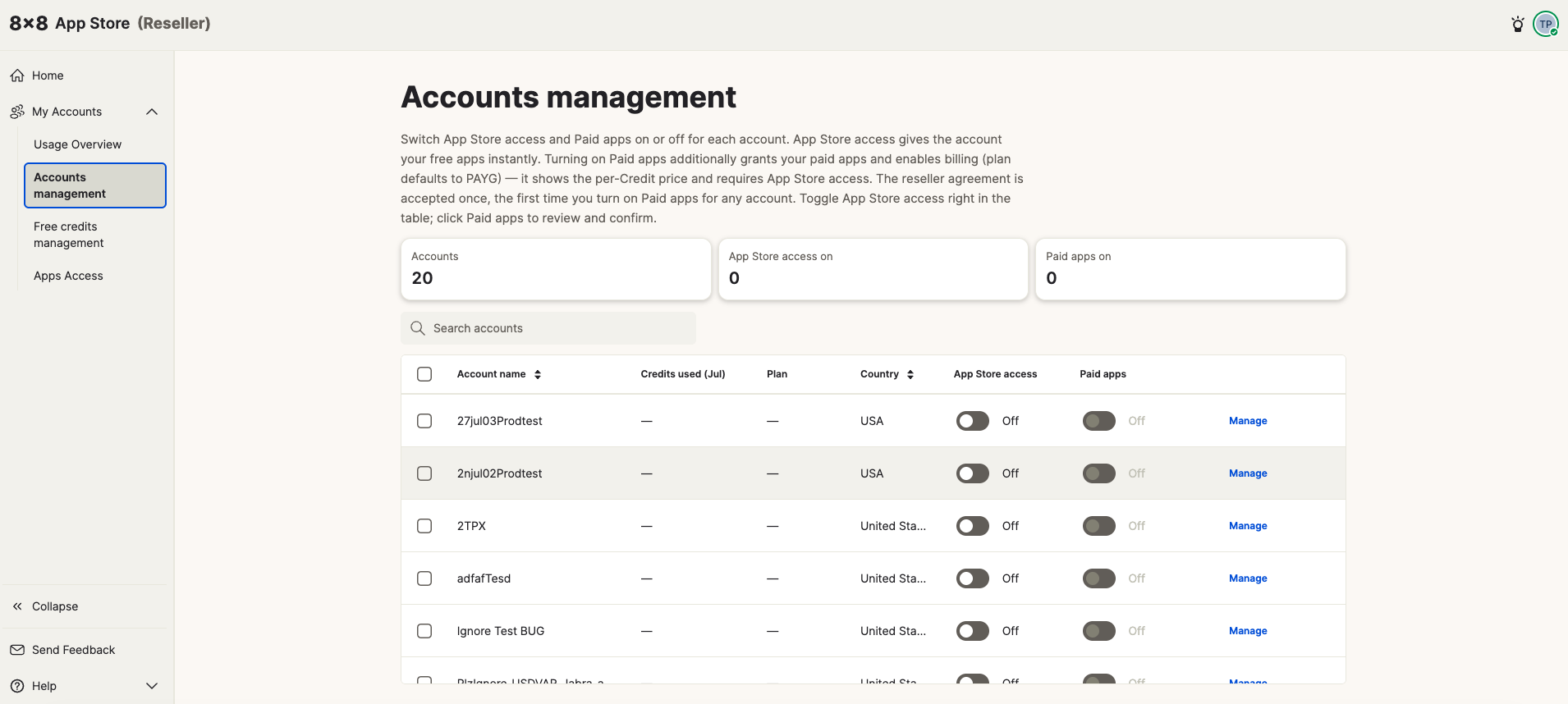
Accounts management is where you enable the App Store — and optionally paid apps — for each of your customer accounts. You control access at the individual account level, so you can onboard customers at your own pace and tailor access to their needs.
Navigate here via My Accounts → Accounts management.
The accounts table
The page shows a summary row at the top (total accounts, how many have App Store access on, how many have paid apps on) followed by a searchable table of all your accounts.
Each row shows:
- Account name
- Credits used (for the current billing period)
- Plan
- Country
- App Store access toggle (On/Off)
- Paid apps toggle (On/Off, only active when App Store access is on)
- Manage link
Enabling App Store access (free apps)
Toggling App Store access to On for an account immediately grants that account access to all free apps in your catalog. No further confirmation is required.
The summary counter at the top updates to reflect the change.
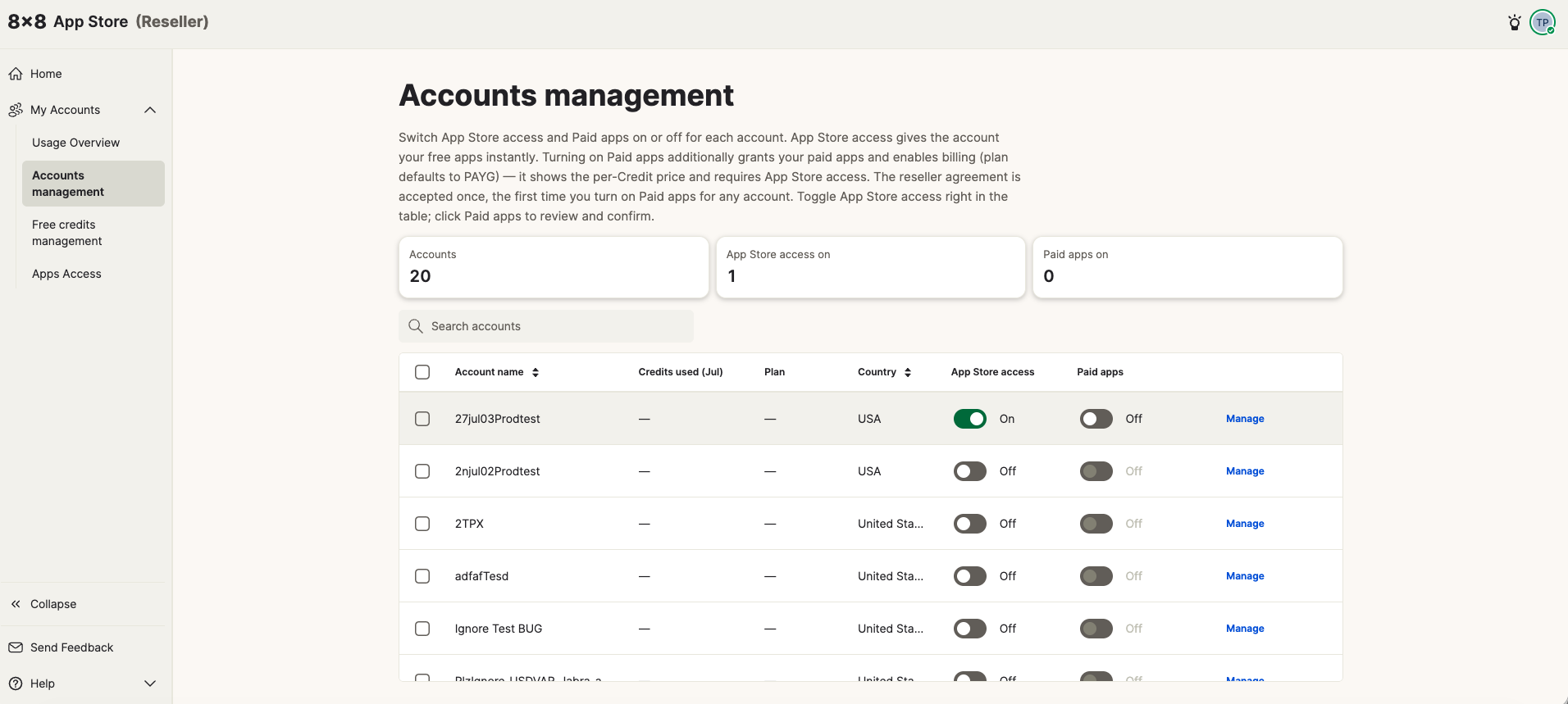
Tip: Enabling App Store access does not enrol the account in paid app billing. The customer's admins will see free apps in their App Store and can install them, but paid apps will not be visible until you also enable Paid apps for that account.
Enabling paid apps
Clicking the Paid apps toggle opens a confirmation drawer on the right. It shows the account name, country, and a summary of the applicable charge. Review the details and click Enable Paid Apps to confirm, or Cancel to close without making changes.
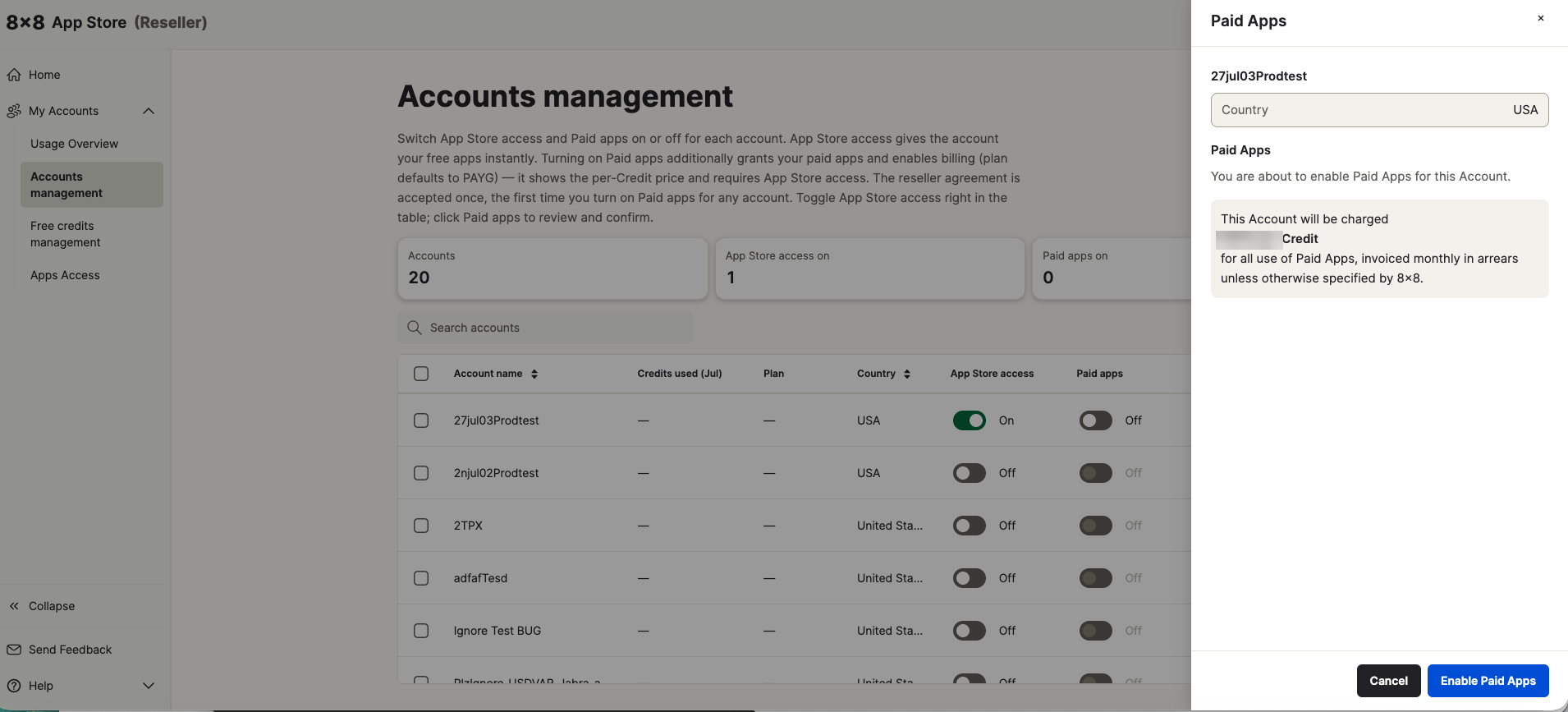
About the rate: The credit rate shown in your application is based on your local currency and the commercial terms agreed with 8x8. If you have any questions about your specific rate, please contact your 8x8 account manager.
Per-account confirmation: Each time you enable paid apps for an account, you will be shown the applicable charge so you are always aware of the cost before confirming. An email confirmation will also be sent once paid apps are enabled for that account.
Viewing and managing an individual account
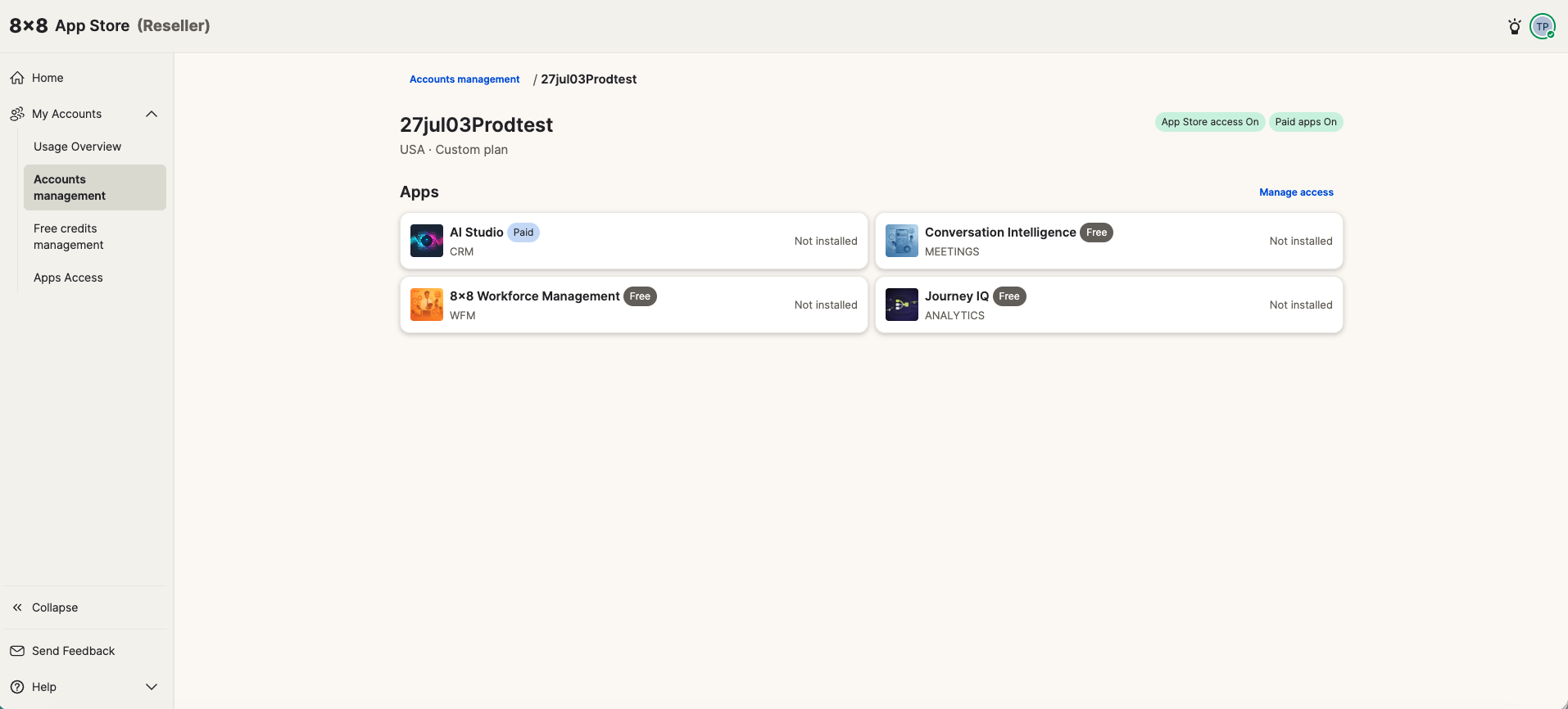
Click Manage on any row to open the account detail page. This shows:
- The account's current status (App Store access On/Off, Paid apps On/Off)
- The account's plan and country
- All apps in your catalog and their installation status for that account
- A Manage access link to control which specific apps are visible to that account
Restricting access to specific apps
Using Manage access on the account detail page, you can restrict which apps from your catalog are available to that specific account. This is an optional per-account override — by default all apps in your catalog are available to every account you enable.
Rules for removing app access: If you need to remove a specific app from an account's view, use the Manage access panel. However, if a customer has already installed an app, removing access to it does not automatically uninstall it — the app will continue to function for that account until uninstalled by the account's own administrator.