Signing In as a Reseller
The 8x8 App Store is accessible without logging in — anyone can browse the catalog. However, to manage your accounts and access reseller controls, you need to sign in with your partner credentials.
Step 1 — Visit the App Store
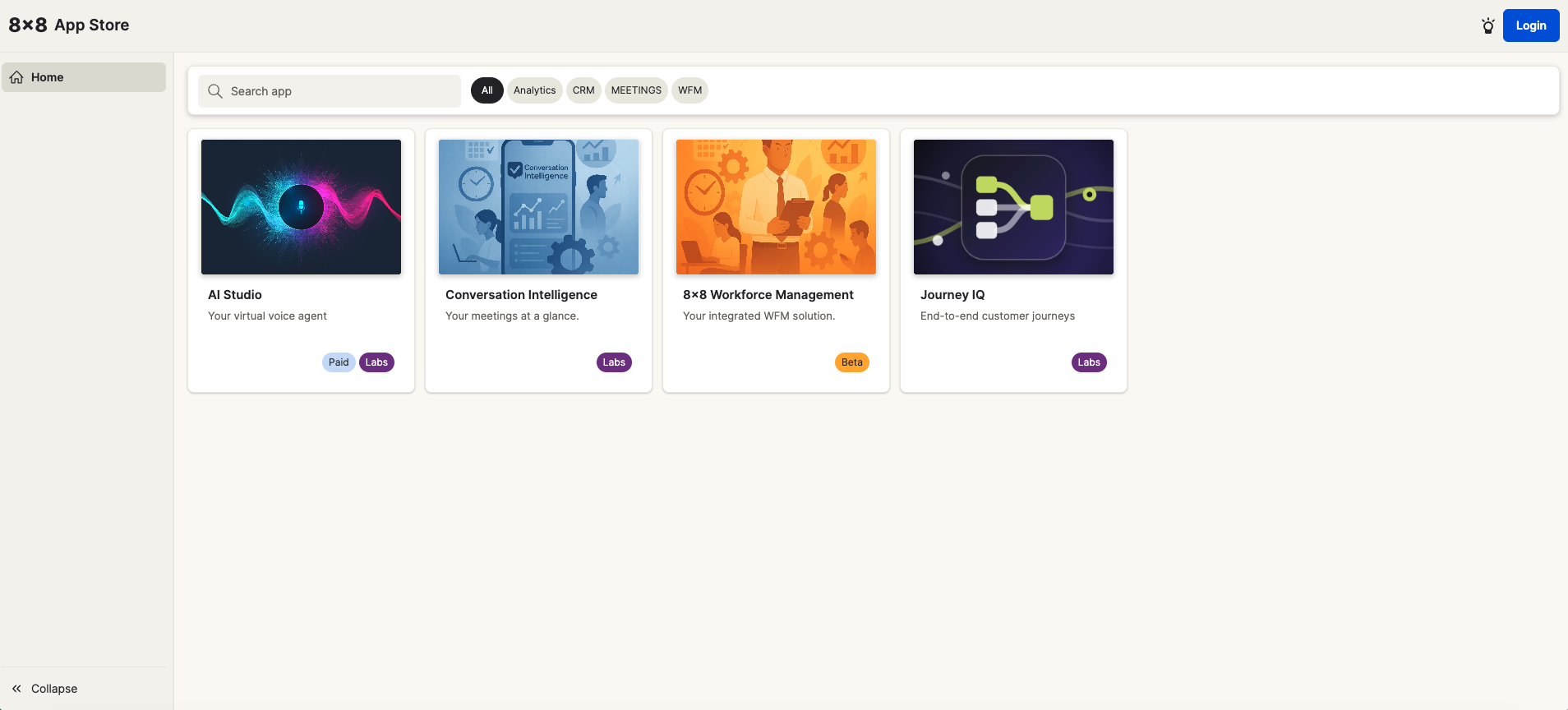
Navigate to the 8x8 App Store. You will see the public catalog with apps listed by category. The Login button appears in the top-right corner.
Step 2 — Choose Partner Exchange
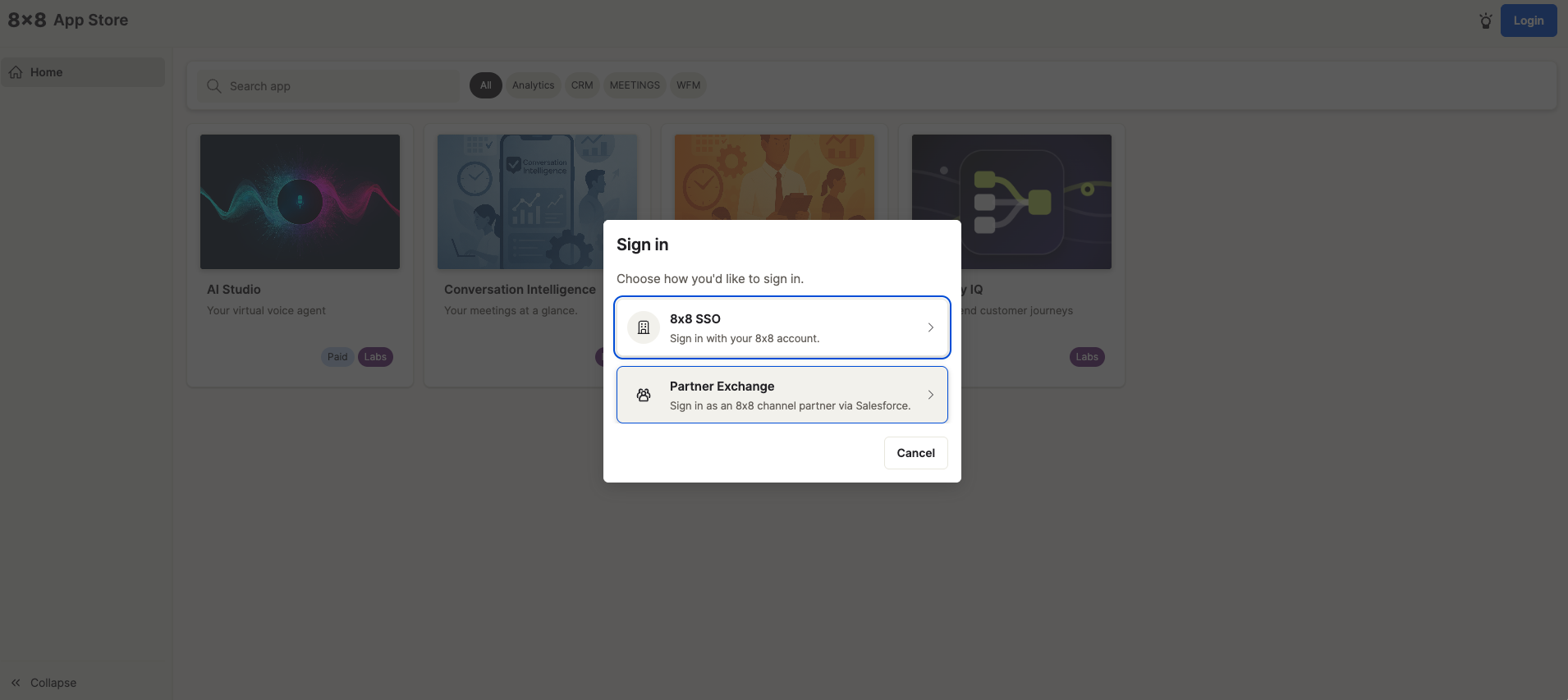
Click Login. A sign-in dialog appears with two options:
- 8x8 SSO — for 8x8 customers signing in with their own 8x8 account
- Partner Exchange — for 8x8 channel partners signing in via Salesforce
Select Partner Exchange.
Step 3 — Sign in via the Partner Portal
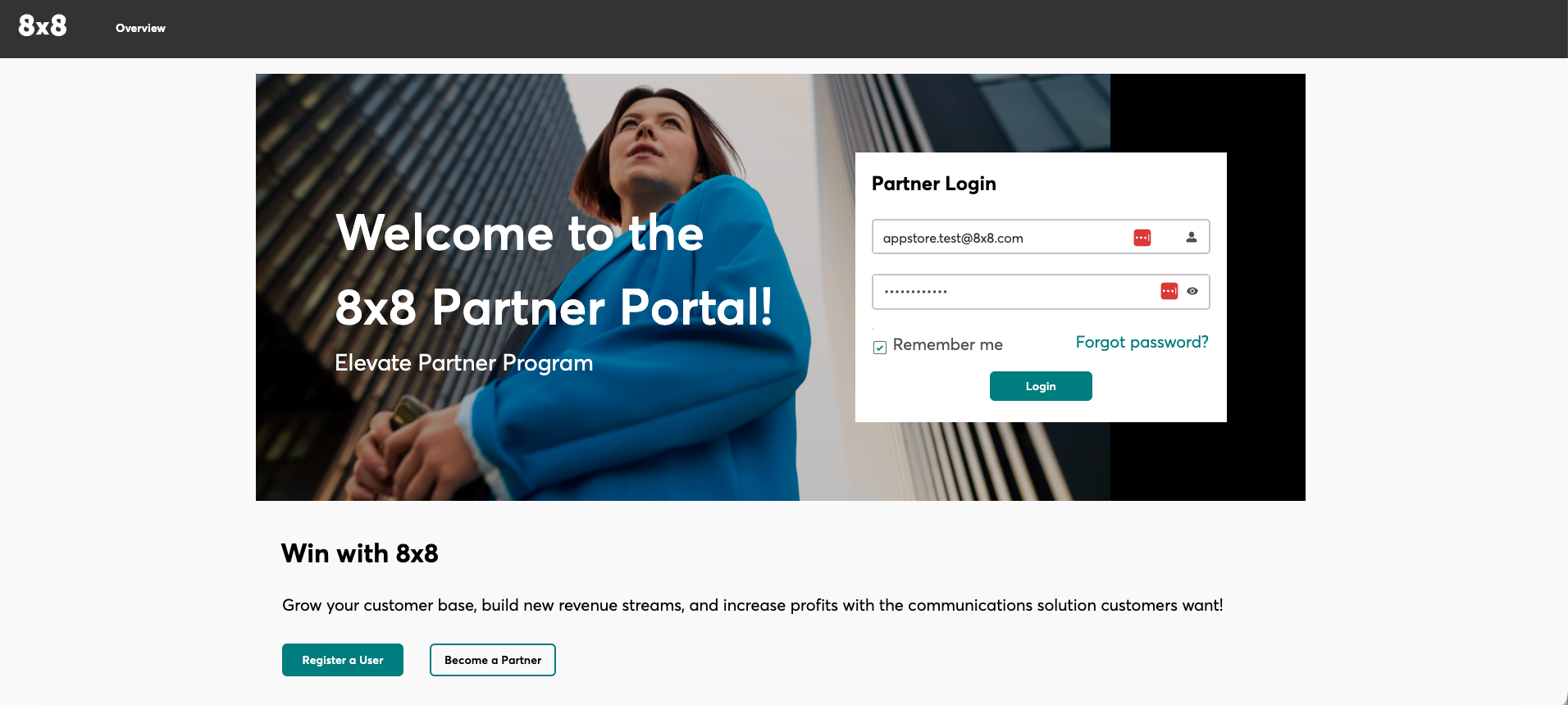
You will be redirected to the 8x8 Partner Portal (Elevate Partner Program). Enter your partner email address and password, then click Login.
If you do not have credentials, contact your 8x8 partner manager or use the Register a User link on the login page.
Step 4 — Accept the Partner Terms & Conditions (first time only)
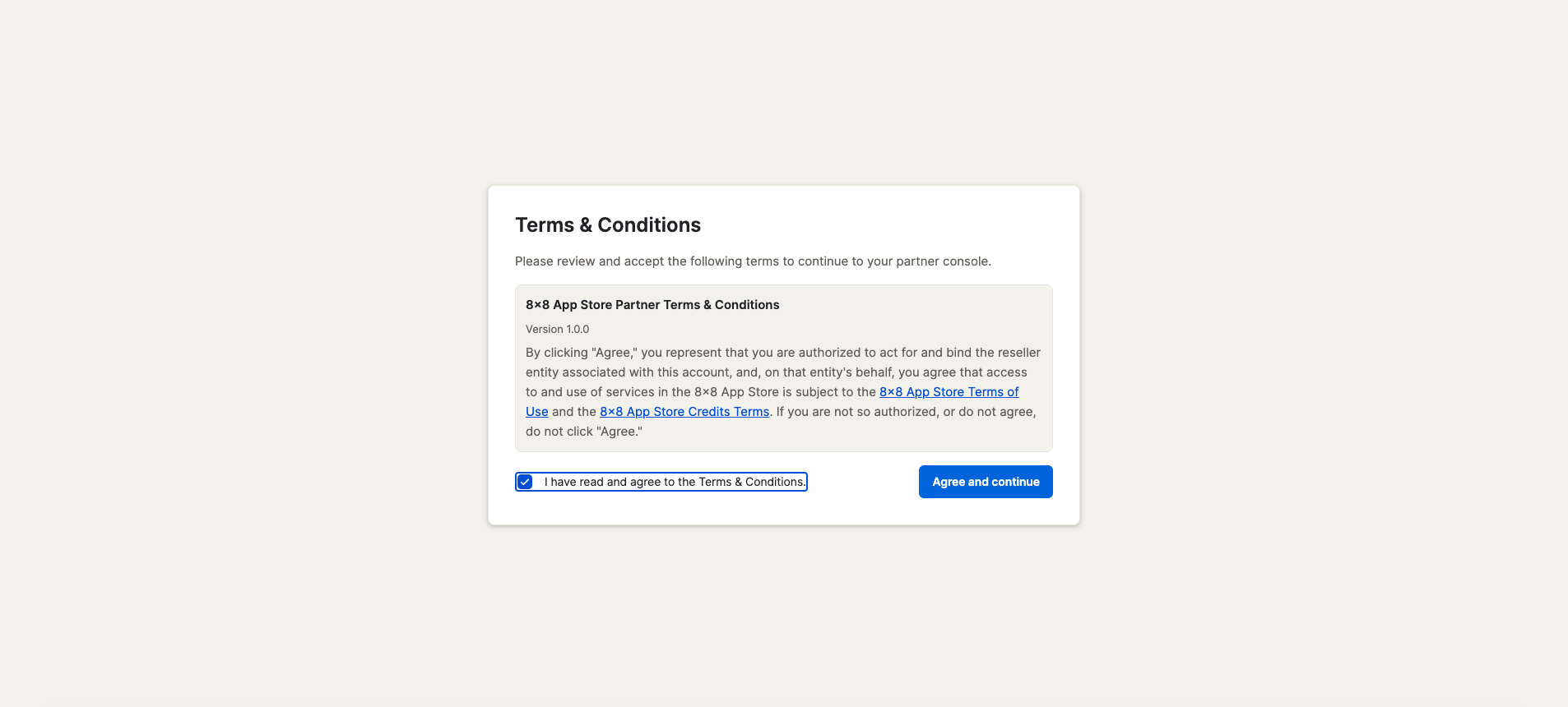
On your first login, you will be asked to review and accept the 8x8 App Store Partner Terms & Conditions.
Check the box confirming you have read and agree to the terms, then click Agree and continue.
Note: This step only appears on your first login. You will not be asked again on subsequent visits.
Step 5 — You're in
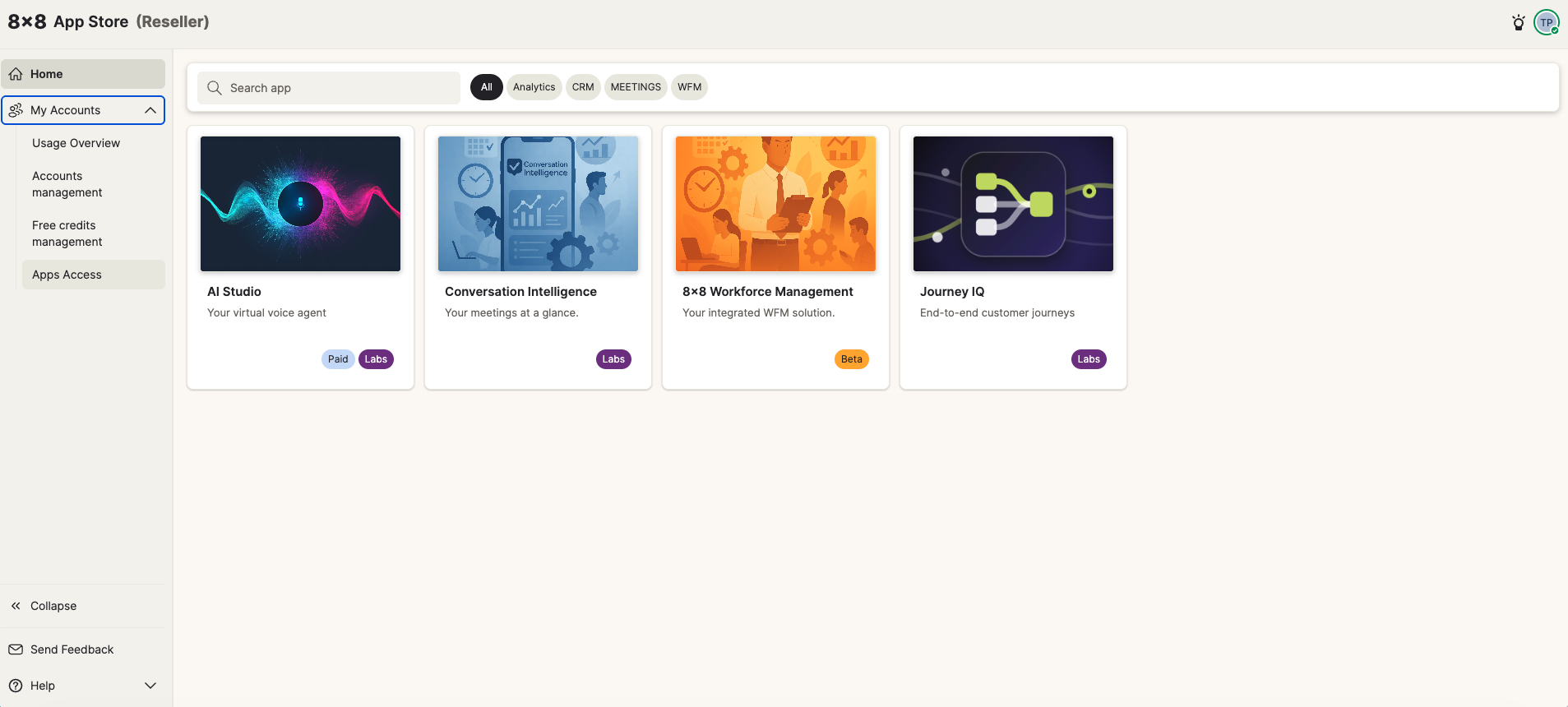
After accepting the terms, you land on the 8x8 App Store (Reseller) view. The title bar now shows (Reseller) and your avatar appears in the top-right corner.
The left navigation now includes a My Accounts section with:
- Usage Overview — credit consumption across all your accounts
- Accounts management — enable/disable access per account
- Free credits management — distribute free credits from your reseller pool
- Apps Access — control which apps appear in your catalog
Next step
Before you can enable apps for individual accounts, you need to configure your app catalog. Continue to Apps Access.